

AuraScope has spent the last three months telling brands what's broken in their AI search visibility. The gap that's haunted us is the one between knowing and shipping. A recommendation in a dashboard is half the job. Translating it into a brief, handing it to a writer or developer, and watching context evaporate in the relay is the other half. That's where most of the work dies.
This guide closes that gap. With AuraScope's Model Context Protocol (MCP) integration, your AI agent (Claude Desktop, Cursor, ChatGPT, Codex, or any MCP-compatible client) can read directly from your AuraScope account. Recommendations land in the chat window where the work already happens. The agent inherits three months of accumulated context: every citation, every gap, every prompt buyers are putting to AI about your brand. You ask, it drafts, you ship.
Setup takes about five minutes.
What MCP Is and Why It Matters
Model Context Protocol is the new open standard that lets AI agents read from external tools the same way you do. If you've used a custom connector in Claude Desktop or a custom GPT in ChatGPT, you've seen the pattern. MCP is the protocol underneath it.
The reason MCP matters more than a traditional API is context. Your agent already knows your brand, your tone, your recent campaigns. When you connect AuraScope, it inherits visibility scoring, citation movement, and every recommendation we've generated, with the full reasoning behind each. An agent on its own guesses at AI search. An agent connected to AuraScope works from your data.
Two Paths: Connector or Token
Pick the path that matches the agent you use. Both end up in the same place: AuraScope tools live inside the chat window.
- Connector path (Claude Desktop, ChatGPT): Add AuraScope as a custom connector and sign in via OAuth. No token to manage. ChatGPT additionally requires a workspace admin to set the connector up once.
- Token path (Cursor, Codex): Generate an MCP token from your AuraScope settings and paste it into your client's MCP server config.
The AuraScope MCP URL is the same for everyone:
https://api.aurascope.co/mcp/
Connector Path
Claude Desktop
- Open Claude Desktop and go to Settings › Connectors.
- Click Add custom connector.
- Paste the AuraScope MCP URL:
https://api.aurascope.co/mcp/. - Click Connect. Claude will open an OAuth window asking you to sign in to AuraScope and authorise the connector.
- Once signed in, AuraScope appears in your active connectors list.
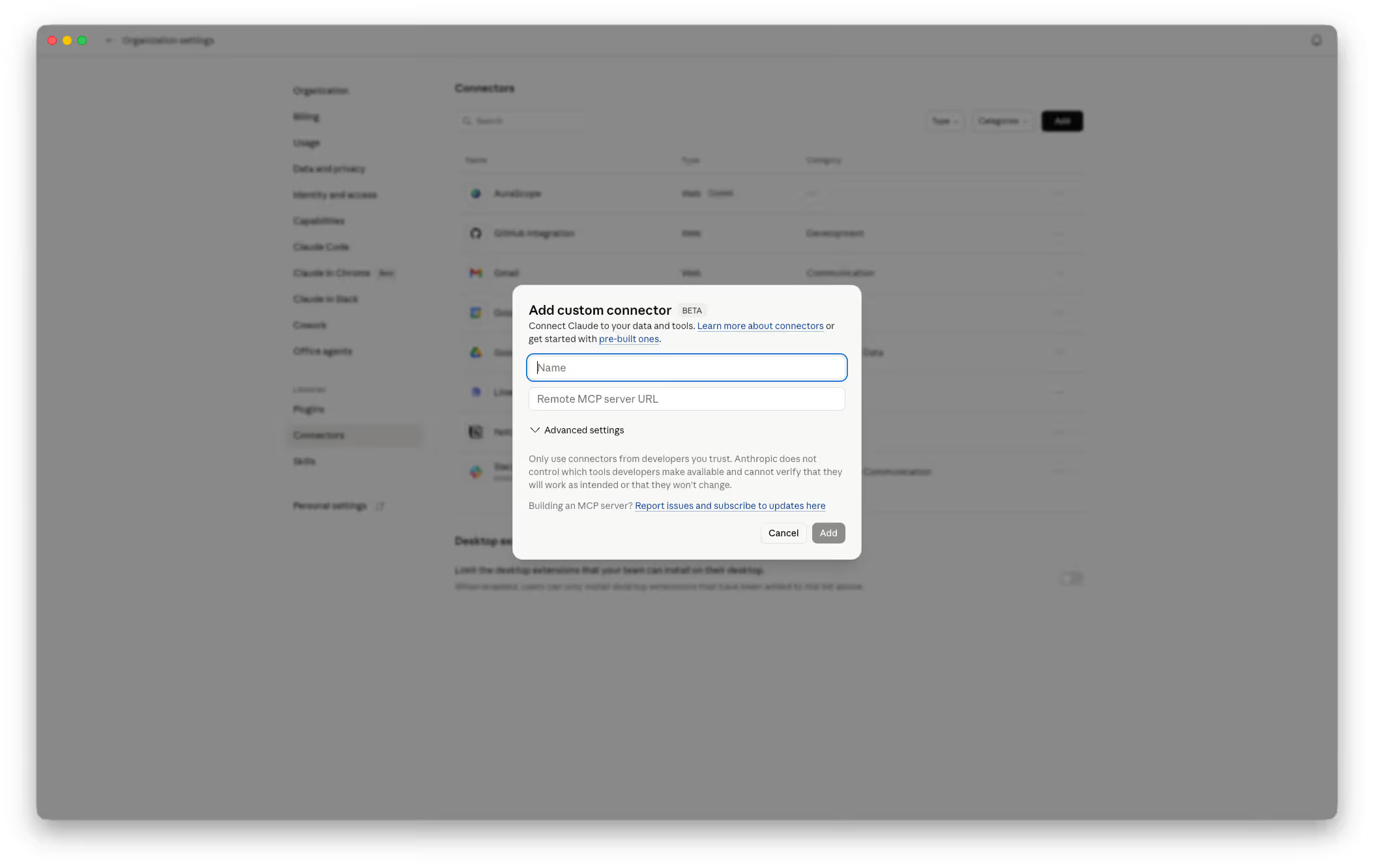
Open a new chat and type "What websites do I have in AuraScope?". Claude should return your list. If it does, you're connected.
ChatGPT (Workspace Admin Required)
Only ChatGPT workspace admins can add custom connectors. If you're not the admin, send this guide to whoever owns the workspace. They set it up once and it becomes available to everyone in the workspace.
- From the ChatGPT sidebar, open Settings › Connectors › Add new.
- Choose Custom connector and paste the AuraScope MCP URL:
https://api.aurascope.co/mcp/. - Sign in to AuraScope when the OAuth prompt appears.
- Pin AuraScope to the connectors you want available in chat.

Token Path
Generate Your AuraScope MCP Token
Cursor and Codex don't run the OAuth flow inside the client. You generate a token in AuraScope and paste it into the client's MCP config.
- Sign in to your AuraScope dashboard at aurascope.co.
- Open Settings › Integrations.
- Find the MCP section and click Generate token.
- Copy the token to your clipboard. Store it somewhere safe. You won't be able to see it again after closing the dialog.
Tokens are scoped to your account and inherit your role. Viewers can read; owners and managers can write. The same token works in both Cursor and Codex.
Cursor
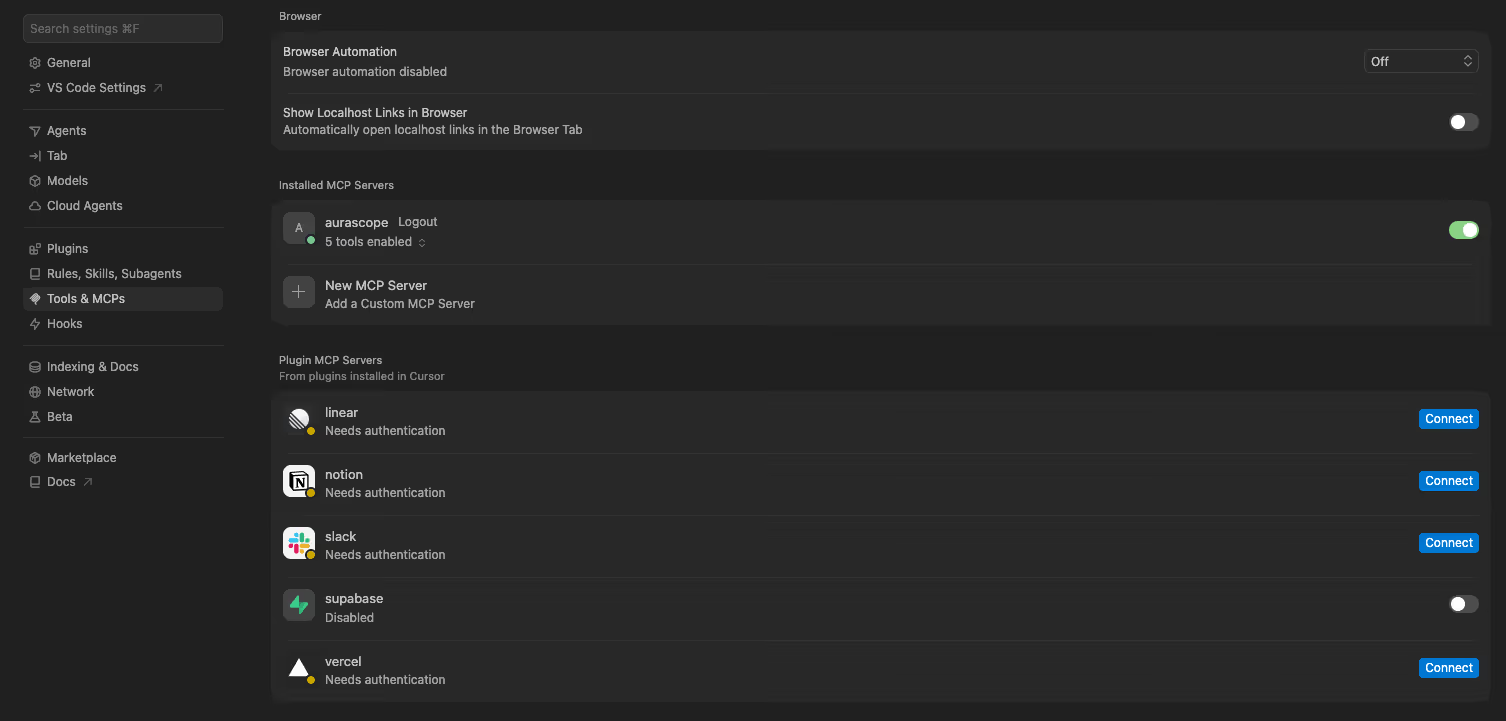
- Open Settings › MCP in Cursor.
- Click Add new MCP server.
- Enter
aurascopeas the name andhttps://api.aurascope.co/mcp/as the URL. - Add your token under the
Authorizationheader asBearer YOUR_TOKEN. - Save. Cursor will reload the MCP servers and AuraScope will appear in the available tools list.
Codex
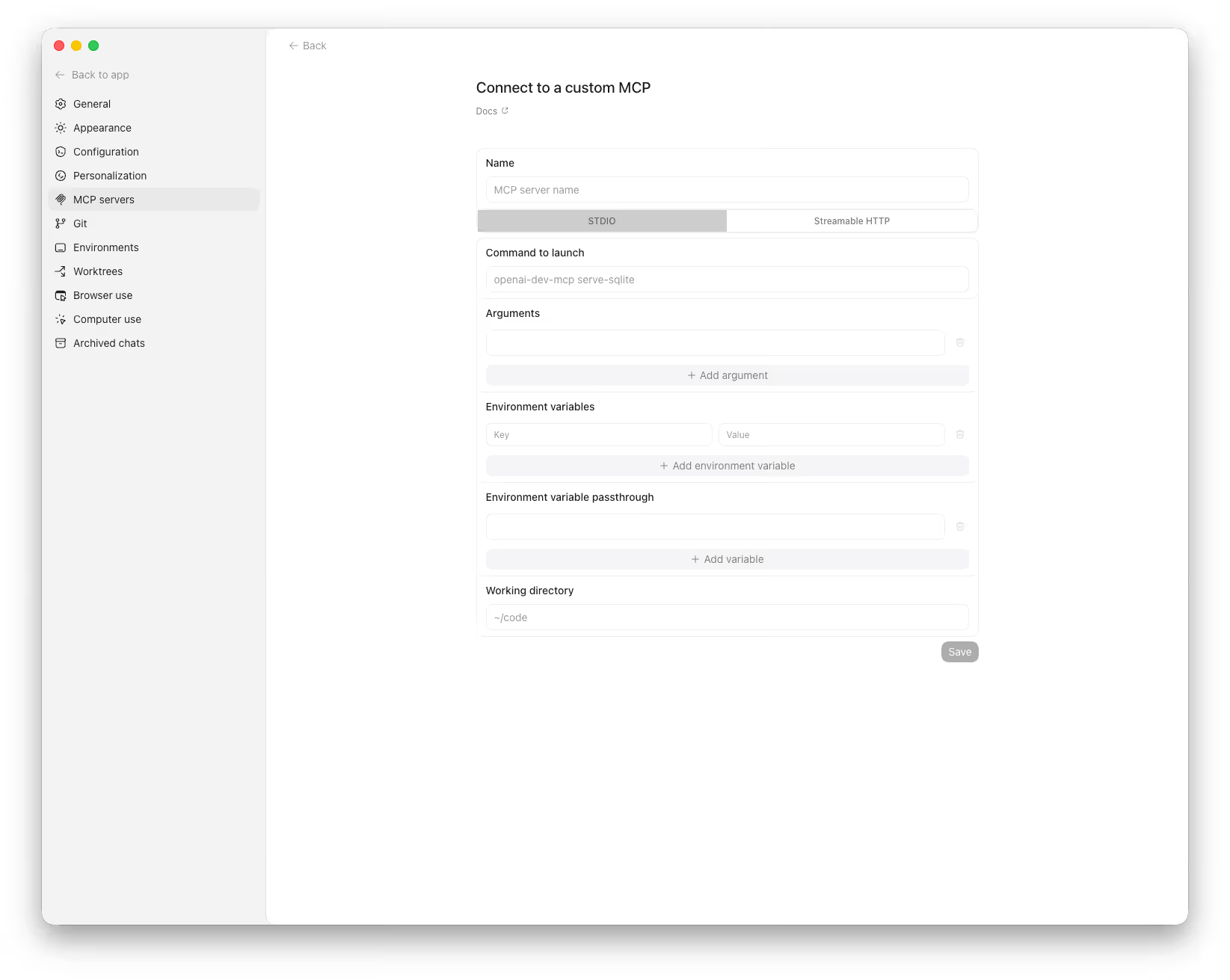
- Open Settings › MCP servers in Codex and click New MCP server.
- Choose Streamable HTTP.
- Paste the AuraScope URL
https://api.aurascope.co/mcp/. - Add your token from the step above.
- Save.
Cline or Other MCP Clients
Any MCP-compatible client follows the same pattern as Cursor and Codex: paste the AuraScope URL, set the Authorization header to Bearer YOUR_TOKEN, restart the client, and the AuraScope tools become discoverable.
Confirm the Connection
Open a new chat in your agent and try one of these prompts:
- "List the websites I have in AuraScope."
- "Give me a brand health summary for [your domain]."
- "What are my top three open recommendations right now?"
If the agent returns real data from your account, the connection is live.
What You Can Do Now
The connection unlocks four high-leverage workflows. Each one removes a step you used to do manually.
1. Pull Recommendations Straight Into Chat
Instead of clicking through the dashboard, ask:
"Pull the next-best action from AuraScope for our pricing page and draft the on-page rewrite."
The agent comes back with the recommendation and a draft. For example:
Rec #14, high priority. Your pricing page is missing three buyer-intent prompts agents are sending right now: "is [Brand] worth it?", "[Brand] vs alternatives", "[Brand] pricing breakdown." Two competitors are cited on all three; you're cited on none. Suggested rewrite below: it adds an FAQ block, restructures pricing rationale, and includes JSON-LD schema. Want me to draft the schema too?
You read the draft, paste it into your CMS, ship it. No translation tax.
2. Get a Brand Health Summary on Demand
You don't need to log in to check your numbers. Try:
- "Summarise our visibility score and citation movement over the last 30 days."
- "Which competitors gained citation share against us this week?"
- "Show me the prompts where we lost ground."
3. Action Recommendations End-to-End (Cursor + Webflow MCP)
If your stack also includes the Webflow MCP, you can chain the two. AuraScope tells the agent what needs to change. Webflow MCP lets the agent make the change.
Example prompt in Cursor:
"Pull the highest-priority schema recommendation from AuraScope for our homepage. Add the JSON-LD it suggests to the Webflow page directly."
One chat window. The recommendation, the draft, and the publish action, all without leaving the agent. This is the loop our customers ask about most. It's the workflow that turns a dashboard into work that actually ships.
4. Ask Citation and Prompt Questions in Plain Language
The full account is queryable in natural language:
- "Which of our pages is most cited by ChatGPT?"
- "Draft an FAQ block answering the top five buyer-intent prompts AuraScope is tracking for our brand."
- "What are the three highest-impact recommendations I haven't actioned yet?"
Troubleshooting
The agent says it can't find AuraScope tools
Restart the client after adding the connector. Most agents only load MCP servers at startup. If tools still don't appear, double-check the connector URL has no trailing whitespace and matches https://api.aurascope.co/mcp/ exactly.
Claude or ChatGPT shows an OAuth error
Make sure you signed in to the AuraScope account that owns the website you're trying to query. If you're using a Google sign-in, use the same Google account both places.
ChatGPT won't let me add a custom connector
Custom connectors are admin-only on ChatGPT workspaces. Ask your workspace admin to add the AuraScope connector once and pin it for the workspace.
Token errors or 401 responses (Cursor or Codex)
The token expired or was regenerated. Go back to Settings › Integrations in AuraScope, generate a new one, and update it in your client's MCP config.
The agent can read but can't write
Your role on the website doesn't allow the action you're asking for. Owners and managers can write. Viewers can only read. Ask your team owner to bump your role if you need write access.
What's Next
This is step one of closing the loop. The next phase tightens it further. Your agent will chain across recommendations, pick up where last week's run left off, and feed citation lift back into AuraScope as the work lands. Less prompting, more compounding. We'll ship it when it's ready.
For now: connect the agent, ask it to pull a recommendation, and ship the first piece of work it drafts. The dashboard was always the wrong destination. The chat window is where the work happens.
Need help? Book a demo and we'll walk through the full flow on your domain in twenty minutes. Still us on the call, not a salesperson.